
Equali allows you to set default Ledger Account IDs for settlement categorisation, allowing automated settlement posting and speeding up manual settlement posting.
What is a Ledger Account ID?
A Ledger Account ID maps Equali's settlement breakdown categories to your accounting system's settlement breakdown categories, helping to improve the precision and accuracy of your accounting. You may know this as a "Chart of Accounts" (e.g. Xero), or "Categories" (e.g. FreeAgent).
Setting default ledger account IDs
-
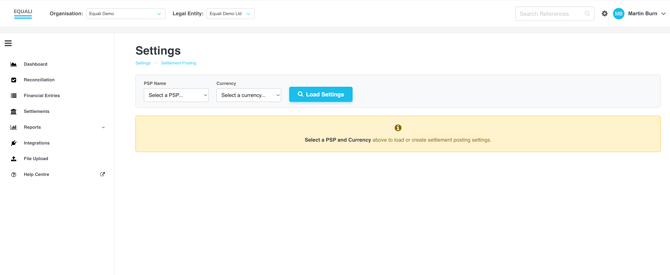
Step 1: Navigate to the "Settings" page by clicking the cog icon between your profile and the search bar at the top right of the Equali dashboard.
-
Step 2: Once you're on the "Settings" page, make sure you're viewing the legal entity you would like to update by checking the "Legal Entity" dropdown at the top of the Equali dashboard.
-
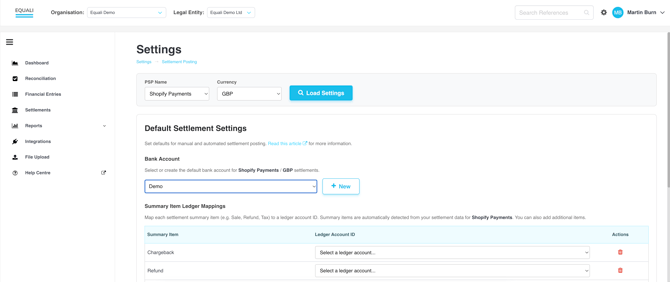
Step 3: Select a "PSP" and "Settlement Currency" from the respective dropdown menus on the page. Both of these dropdown menus are populated based on the data we have received from your data sources, both from our regular BAU runs and any backfilled data from your trial or subscription plan. Next, click the "Load Settings" button.
- Step 4: The "Default Settlement Settings" table will appear for your chosen legal entity, PSP, settlement currency combination. In the table, you will see a link to this page, which gives more information about Default Settlement Settings. Underneath that link and the "Bank Account" section is the "Settlement Item Ledger Mappings" section, as shown below.
- Step 5: In the "Summary Item Ledger Mappings" section, you will see a list of Summary Items and Ledger Account IDs, as shown below.
- "Summary Items" refer to Equali's Financial Entry Types (e.g. "Sale", "Refund", "PSP Fee") and Equali's Tax Lines.
- The table is pre-populated with any "Summary Items' which have been seen for that legal entity, PSP and settlement currency combination, either in BAU data runs or from backfill. For instance, if you have previously seen a "Sale" in Equali for that profile combination, you will see "Sale" listed in the table.
-
- Note: Make sure the legal entity you're updating is connected to an accounting system. You can check this by looking for a tick icon next to you accounting system on the "Integrations" page from the navigation bar on the left of the Equali dashboard.
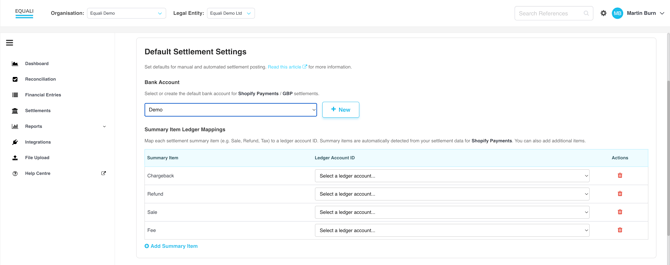
- Step 6: You can select and map one Ledger Account ID for each Summary Item by selecting from the Ledger Account ID dropdown.
- To delete a single mapping, click the red bin/trash icon.
- Step 7: To add a Summary Item that you haven't previously seen on your account, click the "Add Summary Item" button at the bottom of the table. This opens up a dropdown for you to select a Summary Item based on Equali's list of Financial Entry Types and Tax Items. If you believe a Summary Item type is missing, please contact the Equali team.
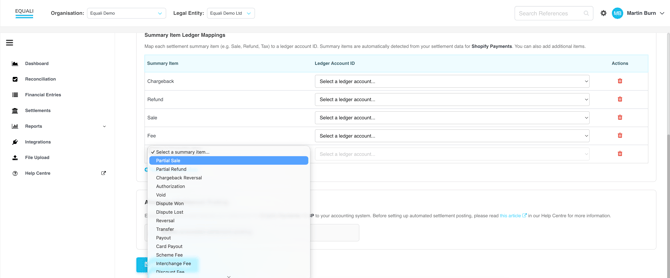
- Step 8: Once you're finished, click the "Save Settings" button at the bottom of the page. Your profile will be used as outlined below.
Results
- Automated settlement posting: Any settlements for that profile (legal entity, PSP, settlement currency combination) will automatically use your default Ledger Account IDs for each Summary Item when posting to accounting systems when automated settlement posting is switched on and all other automated settlement posting criteria are met for a given settlement. Having a default bank account for a given profile is a requirement for any automated settlement posting.
-
Manual settlement posting: Any settlements on the "Settlements" page for that profile (legal entity, PSP, settlement currency combination) will automatically use your default Ledger Account IDs to pre-populate the Ledger Account ID fields for each Summary Item when connected to your accounting system. This speeds up the manual settlement posting process from the dashboard.